


PDF Pro: Edit, Sign & Fill PDF
4.11.41K Reviews
App Specs
- Version
- 7.4.3
- Updated On
- License
- Free
- Downloads
- 10,000,000+
- Developer
- PDF Office Lab
- Categories
- Productivity
- Platform
- Android
Screenshots
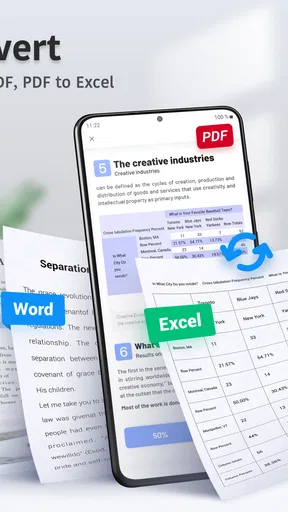
 Analysis by AppCompare
I recently got my hands on PDF Pro: Edit, Sign & Fill PDF, and I have to say, it's a real game-changer for anyone who deals with PDFs on a regular basis. Whether you're a student, a professional, or just someone who loves to keep things organized digitally, this app might just become your new best friend.
Why editing is the capability that stands out
PDF Pro is a productivity app from PDF Office Lab, and its appeal is that several document jobs can happen in one place. Of those jobs, I find editing the most useful to focus on: a PDF often looks finished until you spot a typo, need to add a note, or realize a page is in the wrong order. Being able to work on the file rather than start over can save a surprising amount of hassle.
The app is free to install, is rated for Everyone, and has an average rating of 4.1 from around 110,000 ratings, with over 10 million installs. It has been available since November 13, 2019, and version 7.4.3 is listed for Android 5.0 and later. Those figures suggest a well-established option, though popularity alone cannot tell me whether it suits your workflow. Some features may involve in-app purchases, with listed items ranging from $1.99 to $149.99, so I would check the cost shown in the app before relying on a paid tool.
First Impressions and User Interface
When I first opened PDF Pro, I was greeted with a clean and intuitive interface. It's pretty straightforward, which is always a plus in my book. No one wants to spend ages figuring out how to navigate an app, right? The design is sleek, with all the essential tools easily accessible.
One thing I noticed right off the bat is how responsive the app is. I didn't experience any lag, even when working with larger files. This is crucial because waiting for documents to load can be a major buzzkill, especially when you're in a hurry.
Comprehensive Editing Features
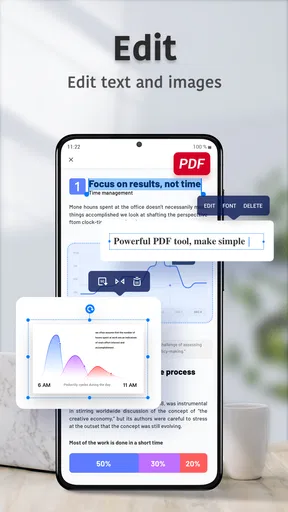
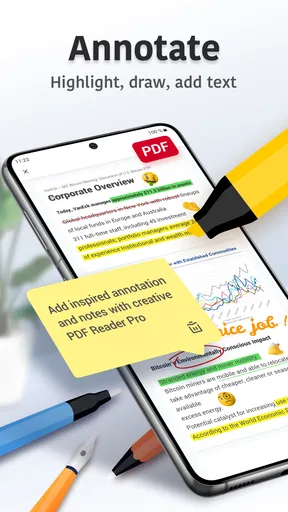
Now, let's dive into the nitty-gritty. The editing features are where this app really shines. You can do everything from adding text, images, and annotations to more advanced tasks like rearranging pages or merging documents. It’s like having a full-fledged PDF editor right in your pocket.
I particularly enjoyed the text editing feature. It's super easy to add or modify existing text within a PDF, and the app does a great job of maintaining the document's formatting. No more awkward misalignments or weird font changes—hallelujah!
Worth Reading Before You Choose

EA SPORTS FC Mobile 26 Is a Bigger Football Game, but It Takes Time

Flipboard Shows What News Apps Must Do Beyond the Feed

Switching to Android Auto Means Rethinking Your Driving Routine

Google Calendar Makes a Crowded Week Easier to Manage

Ludo King Makes the Most of the Minutes Between Plans

Baby Panda World Brings Quick Play to Modern Phones, but Its Game Library Feels Busy
A practical editing workflow
For a sensible workflow, I would keep an untouched copy of an important document before making changes. Then I would use annotations for comments or corrections that someone else needs to review, and direct text edits only when the PDF itself should become the revised version. That distinction matters: a note placed over a document is not the same as changing its original wording, and separating review marks from final edits makes handoffs clearer.
Page tools also help when the problem is structure rather than wording. If a scan has a misplaced page, rearranging pages can make it easier to read without rebuilding the file. Merging is useful when related pages arrive as separate PDFs, such as a form and its supporting document. I would still check the page order and read through the combined file before sharing it; a quick merge is convenient, but it does not decide which order makes sense.
For a small screen, I would avoid trying to perfect a long document in one sitting. A phone is handy for a short correction or a quick markup, but precise layout work is easier to judge on a larger display. If the document is visually sensitive, such as a résumé or a brochure, I would inspect the finished PDF at normal reading size before sending it. That is a practical safeguard, not a knock against mobile editing.
Signing and Filling Forms
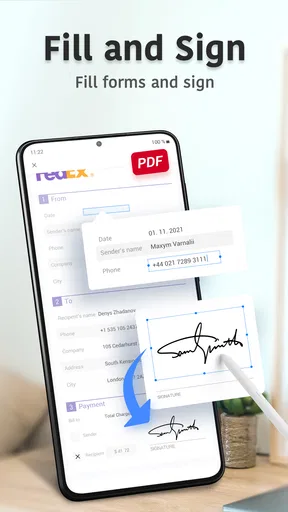
For anyone who's ever had to print a document just to sign it, this feature is a lifesaver. With PDF Pro, you can sign documents digitally. The app allows you to create and store your signature, so it's ready to go whenever you need it. Plus, filling out forms is a breeze. You can easily add text to any field, and the app adjusts everything perfectly.
Whether you're dealing with contracts, tax forms, or any other type of document that requires your John Hancock, this app makes the process seamless and efficient. It’s all about saving time and trees!
When a form needs more than a signature
A realistic use is receiving a permission form or routine application by email while away from a printer. I could open it, fill in the fields, add a signature, and return the document without turning the task into a print-and-scan session. Before sending, I would check every field, especially dates and contact details, then reopen the saved file to make sure the signature and entries are visible where expected.
A saved signature is convenient, but it also calls for a little care. I would use it for documents where a digital signature is appropriate and keep a closer eye on where a signed copy is saved or shared. For a document requiring a particular signing process, identity verification, or formal handling, I would follow the recipient’s instructions rather than assume that a signature drawn in a PDF will meet every requirement.
That is one useful dividing line when choosing a PDF tool. For ordinary forms and everyday approvals, doing the task on a phone can be much simpler than printing. For a high-stakes agreement or a workflow that needs an auditable signing process, a dedicated service designed for that requirement may be a better fit. I see PDF Pro as a handy way to complete common document tasks, not a reason to skip checking what the other party accepts.
Cloud Integration and Sharing
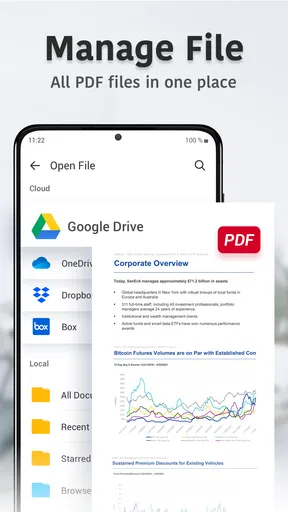
In today's world, being able to access your documents from anywhere is a must. PDF Pro integrates smoothly with cloud services like Google Drive, Dropbox, and iCloud. This means your files are always within reach, no matter where you are or what device you're using.
Sharing documents is also incredibly straightforward. You can easily send files via email or upload them directly to your preferred cloud service. This feature is perfect for collaborating with colleagues or sharing documents with friends and family.
Choosing the right place to work
Cloud access can make a useful difference when a document moves between a phone and another device, but I would still pay attention to which copy I am editing. A simple habit is to open the version from the location where the final copy should live, rather than editing a downloaded duplicate and later wondering which one is current. When sharing a revised file, a clear filename can also help recipients distinguish it from an earlier draft.
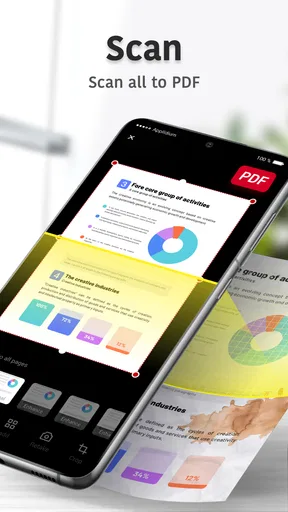
Compared with the usual alternatives, PDF Pro’s strength is convenience: it brings editing, marking up, signing, and form filling together rather than making me switch among a reader, a separate scanner workflow, and a signing tool. A basic PDF viewer may be enough if I only need to read or search documents, and a desktop editor is still preferable for demanding layout changes or long, detailed revisions. I would choose this app when the work is routine and mobile; I would not treat it as a replacement for every specialist PDF workflow.
Where the convenience has limits
Putting many tools in one app does not mean every document task is equally comfortable on a phone. Reviewing a dense contract, aligning lots of small elements, or checking a complicated form can be tiring on a compact screen. I would also be cautious about changing text in a PDF whose layout depends on exact spacing: even when edits are straightforward, a final visual check is important because the surrounding content may not behave like a word-processing document.
The free starting point is attractive, but the in-app purchase range means I would confirm that the particular tools I need are available at a cost I am willing to accept before building a regular workflow around them. If all I do is read PDFs, adding an editor may be unnecessary. If I edit heavily every day or need specialist controls, comparing dedicated desktop software or a purpose-built signing service makes more sense than assuming one mobile app will cover every edge case.
User Experience and Final Thoughts
Overall, using PDF Pro: Edit, Sign & Fill PDF has been a pleasant experience. It combines powerful features with a user-friendly interface, making it accessible for both tech-savvy individuals and those who aren't as comfortable with technology.
In conclusion, if you're looking for a reliable, efficient, and versatile PDF editor, this app is definitely worth checking out. It streamlines the way you handle PDFs and could very well become a staple in your digital toolkit. So go ahead, give it a try, and see how it can simplify your document management tasks.
Who gets the most out of it
I would recommend PDF Pro most to people who regularly receive PDFs that need small changes, annotations, signatures, or completed fields: students handling forms, freelancers returning signed paperwork, and anyone who wants to tidy up document tasks while away from a computer. Its appeal is not that every PDF job becomes effortless, but that several common jobs can be handled in one mobile workflow.
If your documents are mostly for reading, a simpler reader may be all you need. If accuracy depends on fine typography, complex page design, or strict signing procedures, I would use a larger-screen editor or a specialist service instead. For everyday paperwork, though, this is a practical option to try, provided you check any paid feature before depending on it and take a moment to inspect the final file before sharing.
Pros
- User-friendly interface simplifies navigation.
- Comprehensive PDF editing tools available.
- Supports e-signatures for documents.
- Allows form filling directly in the app.
- Smooth performance with minimal lag.
Cons
- Limited features in the free version.
- Occasional ads can be intrusive.
- Some advanced tools require premium.
- Large files may take time to load.
- Offline access is not fully supported.
FAQs for PDF Pro: Edit, Sign & Fill PDF
What features does PDF Pro: Edit, Sign & Fill PDF offer?
PDF Pro provides a comprehensive set of tools for managing PDF documents. Users can edit text, annotate, and highlight content seamlessly. It also allows for electronic signatures and form filling, making it a versatile choice for both personal and professional use. The app’s user-friendly interface ensures a smooth experience for all users.
Is PDF Pro: Edit, Sign & Fill PDF free to use?
While PDF Pro offers a free version with basic features, advanced functionalities such as editing and signing may require a subscription. Users can opt for in-app purchases to unlock these premium features. It's advisable to review the pricing details in the app store to choose the plan that best suits your needs.
How secure is my data when using PDF Pro?
PDF Pro places a high priority on user security and privacy. The app uses encryption protocols to protect your documents and personal information. Additionally, it does not store your files on its servers, ensuring that your data remains private and only accessible to you.
Can I use PDF Pro offline?
Yes, PDF Pro can be used offline, offering flexibility for users who need to work on documents without an internet connection. However, some features, such as cloud storage integration and certain updates, may require online access. Offline functionality ensures productivity regardless of connectivity issues.
Is PDF Pro compatible with all devices?
PDF Pro is designed for both Android and iOS devices, ensuring compatibility across a wide range of smartphones and tablets. Regular updates ensure that the app remains functional with the latest operating system versions, providing a consistent experience for all users.


